Windows will automatically restart your computer after a Windows update unless you disable this feature. Automatic restarting may be a problem if the computer is unattended in a kiosk or gate. Perform the following steps to disable automatic restarts.
- Type “gpedit.msc” into the search box that appears when you click on the Windows icon at the bottom left hand corner of your computer screen.
- Navigate to “Computer Configuration”->” Administrative Template” -> “Windows Components” -> “Windows Update”.
- Right click on “No auto-restart with logged on users for scheduled automatic Updates Installations” and click “Edit”
- Click on the “Disable” radio button (see Figure below) and click “OK”.
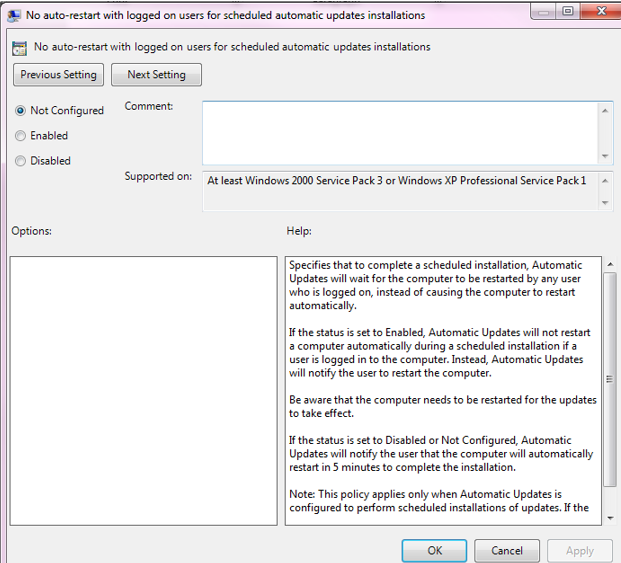
Disable Automatic Restart
NOTE
Please note that if you disable automatic restarts you will need to occasionally restart the computer to ensure it is properly configured with all recommended Windows updates. This is especially important for security updates.