The Point Grey driver is unsigned. You must change your PC’s bios to allow unsigned drivers if it is not already set up that way.
- To verify that this is the problem, open the Device Manager and locate the Point Grey Research Devices. Expand that selection by clicking on the arrow (see Figure 9).
- If there is a yellow “!” icon next to the Point Grey USB3 Vision Camera entry, you will need to modify your bios to allow unsigned drivers.
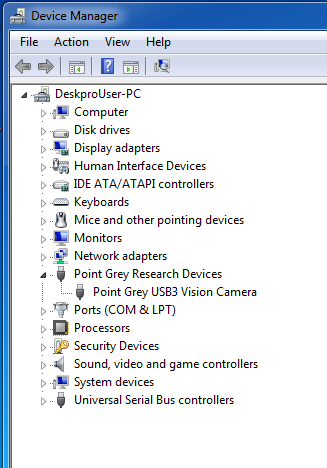
Point Grey Devices in Device Manager
- Restart your computer.
- Hit “F8” repeatedly during startup until the bios menu appears.
- Scroll down to “Disable Driver Signature Enforcement” and hit “Enter”.
- Allow computer to continue booting up.
- Reopen the Device Manager and verify that the yellow “!” icon is no longer present next to the Point Grey USB2 Vision Camera.