- Verify that the SATA cable is connected to the motherboard and the USB 3.0 extension board that shipped with your EYEN Module.
Verify that you have enough power to run all USB devices
You can check the power allocation for a USB hub to detect situations in which too many devices are using the hub.
- Open the Device Manager.
- Double-click “Universal serial bus controllers”
- Right-click “USB Root HUB” (you might have multiple instances), and then click “Properties”
- On the “Power” tab, view the power required by each device in the “Attached devices” list. The total power required to run all devices should not exceed the total power available (see Figure below).
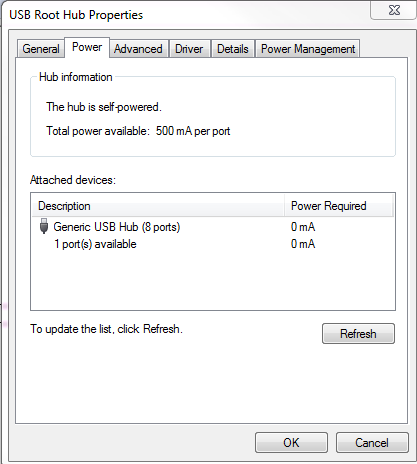
USB Power Allocation
- Disable power management by going to the “Power Management” tab and unchecking the checkbox next to “Allow the computer to turn off this device to save power” (see Figure below).
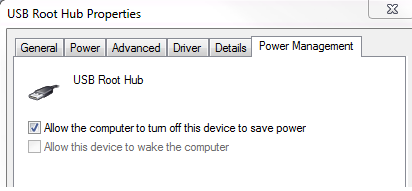
USB Power Management
Verify that you have adequate bandwidth to run all USB devices
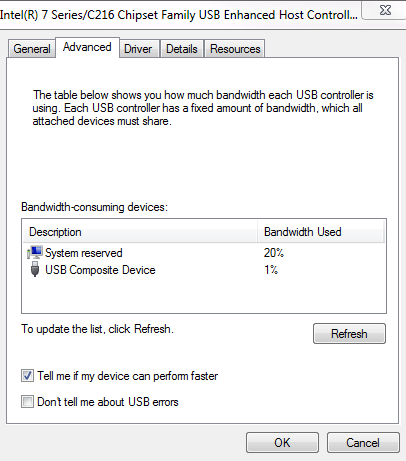
You can view the bandwidth only for a universal serial bus (USB) controller. Some USB devices might not appear because they do not report bandwidth requirements to the operating system. Each USB controller has a fixed amount of bandwidth that all attached devices must share.
- Open Device Manager
- Double-click “Universal serial bus controllers”
- Right-click “[Namebrand] Host Controller” (you might have multiple instances), and then click “Properties”.
- On the “Advanced” tab, in the “Bandwidth-consuming devices” list, view the bandwidth used by each device (see Figure below).