This article will guide you through the process of applying operating system (OS) security updates to the Virtual IDS appliance using the Linux dashboard. Please note that this dashboard only exists if your Identity Server was deployed using a virtual machine image. It does not apply to physical IDS appliances or Windows installations.
Navigating to the dashboard page
The dashboard is located at the same IP address as the Virtual IDS appliance, but is accessed using port 9090. Please note that port 9090 must be open on the firewall in order for this page to be accessible.
In the web browser address bar of a computer that is connected to the network, type https://<IP-address>:9090. For example, if the IP address of the virtual IDS appliance is 192.168.8.111, then this address would look like https://192.168.8.111:9090
If this is your first time navigating to this page the web browser will prompt you with a screen stating that “Your connection is not private”. This warning is caused by the self-signed certificates used by Princeton Identity devices, and they are safe to use. To proceed, click “Advanced”.

Then click “Proceed to <IP-address> (unsafe)”.

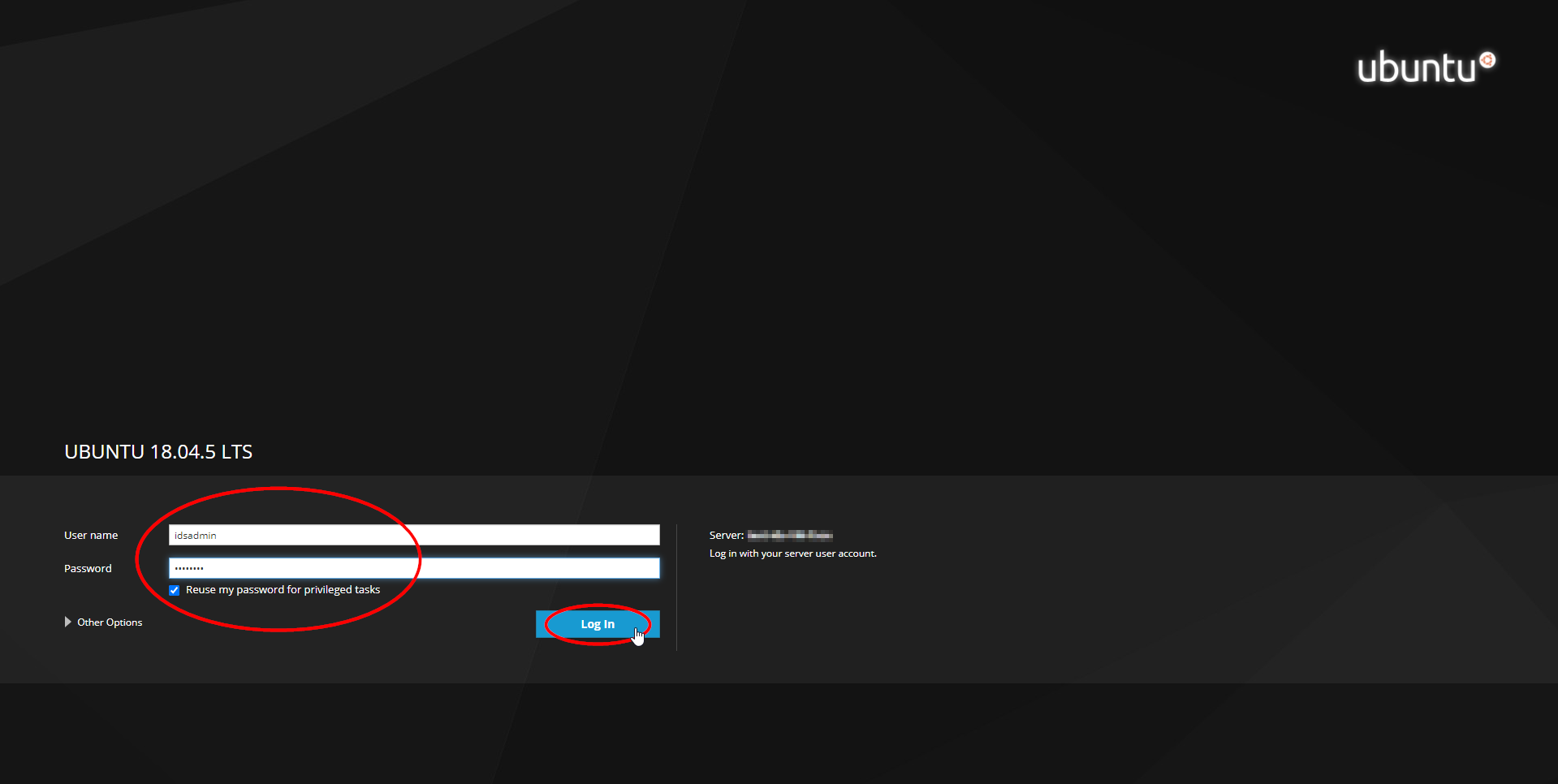
You will then see the log in screen for the Linux dashboard. The default username is "idsadmin" and the default password is "password". Check the box that says "Reuse my password for privileged tasks" as this will give you the full functionality of the dashboard. Enter the information and click "Log In".
You are now logged in to the dashboard. On the left of the screen, you will see various sections which can be used to get information about the current status of your Linux operating system.
Installing security updates
One of the tabs is called "Software Updates". This tab can be used to apply security and other OS updates to your virtual appliance. Please note that software updates should always be tested prior to applying them to a production server. As with all updates, there is risk that functionality could be lost following an operating system update.
If "Software Updates" does not appear on the tabs on the left hand side, skip to the bottom of the article and follow the steps to make it appear.
In order to download the software updates, the virtual machine must have access to the internet.
After navigating to the "Software Updates" tab, it may take a few minutes to load the available updates - this is normal.
Troubleshooting
The "Software Updates" tab does not appear in the tabs on the left
Log in to the dashboard as described above.
Click on "Terminal" on the left side at the bottom of the list.
In the terminal window type the following commands in order. You may need to provide the password for the idsadmin user and/or type "Y" to continue with the installation:
sudo apt-get update
sudo apt-get install cockpit-packagekit
Click on the username in the upper right-hand corner ("IDS Appliance Admin" by default) and select Logout. Upon logging back in, the Software Updates tab should now be visible.
In order to install the Software Updates tab, the virtual machine must have access to the internet.
Please note: Maintenance which requires restarting the Identity Server should be done during off-peak hours to minimize the impact to users.